---
title: "UpsertDialog in React"
url: "https://www.sparkfabrik.com/en/engineering/upsertdialog-in-react/"
lang: "en"
type: "engineering-post"
date: "2024-01-18"
lastmod: "2024-01-18"
author: "Antonio Barile"
description: "How to create a dialog containing a dynamic and reusable form in React"
tags: ["frontend","react","react-hook-form","form","dialog"]
image: "https://www.sparkfabrik.com/images/og/engineering-upsertdialog-in-react-en.webp"
schema: {"@context":"https://schema.org","@type":"BlogPosting","author":{"@type":"Person","name":"Antonio Barile"},"dateModified":"2024-01-18T09:01:00+00:00","datePublished":"2024-01-18T09:01:00+00:00","description":"How to create a dialog containing a dynamic and reusable form in React","headline":"UpsertDialog in React","image":"https://www.sparkfabrik.com/images/og/engineering-upsertdialog-in-react-en.webp","inLanguage":"en","publisher":{"@type":"Organization","name":"SparkFabrik","url":"https://www.sparkfabrik.com"},"url":"https://www.sparkfabrik.com/en/engineering/upsertdialog-in-react/"}
---

# UpsertDialog in React

How to create a dialog containing a dynamic and reusable form in React

- Author: [Antonio Barile](https://www.sparkfabrik.com/en/engineering/authors/abarnto/)
- Published: 2024-01-18
- Topic: [Software development](https://www.sparkfabrik.com/en/engineering/families/dev/)
- Tags: frontend, react, react-hook-form, form, dialog

![developer relations](https://www.sparkfabrik.com/images/engineering/legacy/content/upsertdialog_in_react/react-upsert-dialog.webp)
*developer relations*

In this tutorial we will see how to create a dialog containing a _dynamic_ form, namely a configurable form, reusable in different scenarios with different data structures, in React.

## Requirements

To approach to this tutorial, it's necessary to have a basic understanding of:

- [React](https://react.dev/learn)
- [TypeScript](https://www.typescriptlang.org/docs/)
- [React Hook Form](https://www.react-hook-form.com/get-started/)

We're going to use [MUI](https://mui.com/material-ui/getting-started/) as graphic library, but this is not a requirement: you can use any graphical library you like.

## Table of contents
Here's a table of contents to help you navigate through the article in case you need some quick access to specific concepts:

- [Introduction](https://www.sparkfabrik.com/en/engineering/upsertdialog-in-react/#introduction)
  - [Form management in React](https://www.sparkfabrik.com/en/engineering/upsertdialog-in-react/#form-management-in-react)
  - [React Hook Form](https://www.sparkfabrik.com/en/engineering/upsertdialog-in-react/#react-hook-form)
  - [A dialog for upsert data](https://www.sparkfabrik.com/en/engineering/upsertdialog-in-react/#a-dialog-for-upsert-data)
- [UpsertDialog implementation](https://www.sparkfabrik.com/en/engineering/upsertdialog-in-react/#upsertdialog-implementation)
  - [Implementation details](https://www.sparkfabrik.com/en/engineering/upsertdialog-in-react/#implementation-details)
  - [Project overview](https://www.sparkfabrik.com/en/engineering/upsertdialog-in-react/#project-overview)
  - [The UpsertDialog component](https://www.sparkfabrik.com/en/engineering/upsertdialog-in-react/#the-upsertdialog-component)
    - [The Skeleton](https://www.sparkfabrik.com/en/engineering/upsertdialog-in-react/#the-skeleton)
    - [Setup of react-hook-form](https://www.sparkfabrik.com/en/engineering/upsertdialog-in-react/#setup-of-react-hook-form)
    - [Input registration](https://www.sparkfabrik.com/en/engineering/upsertdialog-in-react/#input-registration)
    - [UpsertDialogInput](https://www.sparkfabrik.com/en/engineering/upsertdialog-in-react/#upsertdialoginput)
    - [The loading spinner](https://www.sparkfabrik.com/en/engineering/upsertdialog-in-react/#the-loading-spinner)
- [useUpsertDialog implementation](https://www.sparkfabrik.com/en/engineering/upsertdialog-in-react/#useupsertdialog-implementation)
- [UpsertDialog instantiation](https://www.sparkfabrik.com/en/engineering/upsertdialog-in-react/#upsertdialog-instantiation)
- [Conclusion](https://www.sparkfabrik.com/en/engineering/upsertdialog-in-react/#conclusion)

## Introduction

Forms are everywhere, and the reason is simple: they're the mean through which the user can insert or edit the application data.

Two aspects are crucial while implementing a form:

1. **validation**: user input must be validated based on specific criteria. Also, providing visible feedback is essential to inform the user about the correctness of data input.
2. **editing**: in the majority of cases, allowing the user _to edit_ previously input data is also important; typically these data come from a remote source, so the edit operation has to be _asynchronous_.

As the number of fields increases, so does the complexity of the form.

### Form management in React

Frontend frameworks and libraries provide several ways to manage forms. We're focusing on React 18.2, the latest version at the moment of writing.
React provides two ways for developers to manage a form. Basically:

- [controlled](https://legacy.reactjs.org/docs/forms.html): it consists in the binding of the properties `value` and `onChange` of an HTML `input` with, respectively, a React state and its setter;
- [uncontrolled](https://legacy.reactjs.org/docs/uncontrolled-components.html): it consists in accessing the HTML elements under the layer introduced by React (i.e. *Virtual DOM*) through _references_, interacting with the DOM _directly_.
  The _uncontrolled_ approach is discouraged though: it could lead to an unpredictable state since an HTML element is manipulated outside the scope of React itself.
  There's one advantage in using the _uncontrolled_ approach nevertheless: changing the state of an HTML element in this way **doesn't trigger a React re-render**, as the _controlled_ approach does.
  Even though this behavior has been mitigated from React 18 on (because of the _batching_ of setState calls), when a form is made of _a lot_ of inputs that need validation and possibly an initial value, re-renders could lead to some problems.

> Actually, it's possibile to optimise the input with a controlled approach too: [check the official documentation](https://react.dev/reference/react-dom/components/input#optimizing-re-rendering-on-every-keystroke) for more information.

### React Hook Form

In the React ecosystem there are some really cool libraries that address the problem of form management. We're focusing our attention on one in particular: [React Hook Form](https://react-hook-form.com/). The reasons why I like it so much are the following:

- by default, it manages forms in an _uncontrolled way_ precisely because it doesn't trigger an automatic re-render of the component;
  > By the way, as we'll see, it also provides a way to use the _controlled approach_, which is very useful in some specific scenarios (for example in React Native).
- its API is exquisitely simple and straightforward, making it easy to perform complex operations on forms.

### A dialog for upsert data
> With *upsert* we mean both create and edit operations.

Especially in business applications, it's often necessary to manage _different data-sets_ using the _same user interface_.
Dialogs are an effective way to achieve this because they're not tied to a specific UI context.

Let's take an example, in which we have 2 completely different data-sets with different needs, in terms of number of fields, of their types, of their validations etc.

1. a car maintenance history, with the following inputs:
   - _parts_ of the car you made replaced/repaired (required)
   - _mileage_ at which the maintenance occurred (required)
   - _date_ in which the maintenance occurred (optional, must have a date format if provided)
   - maintenance _cost_ (optional, must be a number if provided)
1. a collection of chemical elements you've studied at school, in particular:
   - _name_ of the element (required)
   - its _symbol_ (required, maximum 2 characters)
   - the _atomic number_ (required, must be an integer number)
   - the _atomic mass_ (optional, must be a number if provided)
   - is this element synthesised in a lab? (a boolean)

If we had to show/add/edit data, the result could be something like this:
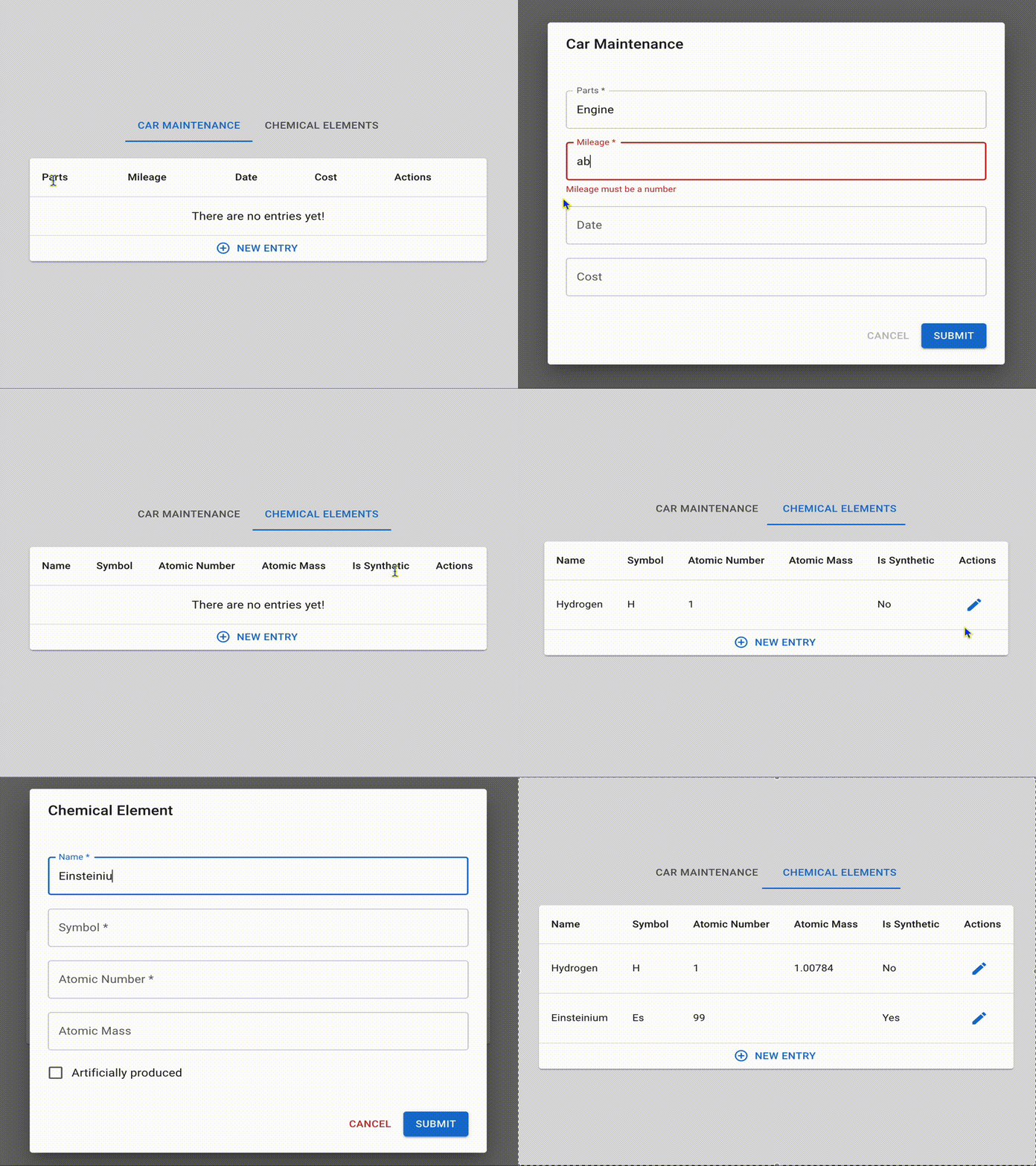
![The image represents the dialogue with a dynamic form after following the tutorial.](https://www.sparkfabrik.com/images/engineering/legacy/content/upsertdialog_in_react/final-result.gif)

> The way the data is shown, which in the example is the table, is up to you!

Let's consider some key aspects from the example above:

- fields (and related validations) inside the dialog change according to the data-set managed;
- both the fetch logic (only in editing) and the one for saving data (both in creation and editing) has the specific data-set as target;
- in editing, data fetching happens _asynchronously_ (a loading spinner is displayed while data is being fetched).
  
We could consider to do all these steps specifically for each data-set; of course this isn't an efficient approach due to the amount of repeated code involved.
So what if we could abstract all this in a single management? A way to do this could be using a simple configuration in which we specify each aspect for each input (its type, validations required and so on). And we _can_ do this thanks to the extreme flexibility provided by [React Hook Form](https://react-hook-form.com/).

If you're curious about how to make this work, keep reading because we're getting our hands dirty with some code!

## UpsertDialog implementation

It's time to implement the form-dialog! But first, a clarification is due: what follows is just _one way_ of implementing a dynamic form based on the aspects described in the [section above](https://www.sparkfabrik.com/en/engineering/upsertdialog-in-react/#introduction). There are others, of course, but this one gets the job done.

### Implementation details

The basic premise behind this implementation is that the management of the dialogue is responsibility of the component that hosts it (which we'll refer to from now on as **host**). The host is responsible for:

1. the information contained _inside_ the dialog (i.e. which data-set load);
2. how managing data coming _from_ the dialog;
3. opening the dialog via _trigger_.

To reuse the dialog in _any host_, we need to stick to a pattern for logic reuse. React provides several ways to reuse logic, but one in particular is very simple, versatile and powerful: [hooks](https://react.dev/reference/react/hooks). The idea is this: create a **custom hook** which, given some options, allows to:

- configure a dialog component implementing a form managed by [React Hook Form](https://react-hook-form.com/);
- keep track of the state of opening of the dialog.

This way the custom hook can _return_:
- a _pre-configured dialog-form component_, ready to be instantiated in the host;
- a _trigger function_, which allows to open the dialog from the host.

> Because hooks are available for function components only, be sure to implement the **hosts as function components**!

## Project overview

First thing first, [download the starter-kit](https://www.sparkfabrik.com/files/engineering/legacy/content/upsertdialog_in_react/upsertdialog_in_react_starter-kit.zip).

> The `package.json` file pins the versions of packages used to ensure that everything works as expected after following the article.

Let's take a quick tour of the project structure. The code is located in the `src/features` folder, which is divided into the following subfolders:

- `Tabs`, which contains the implementation of two tabs (one per-set of data involved) using [MUI Tabs](https://mui.com/material-ui/react-tabs/)
- `Tables`, which contains the implementation of the two tables displayed in respective tab, `CarMaintenanceHistory` and `ChemicalElementsLearnt`. Being quite similar, they instantiate and configure a generic `MyTable`, which contains the [MUI Table](https://mui.com/material-ui/react-table/) implementation.

> You will find some simple type definition that will help you figure out what each component needs.

If you run the starter kit (by following the instructions contained in its `README.md`), you'll see the following:
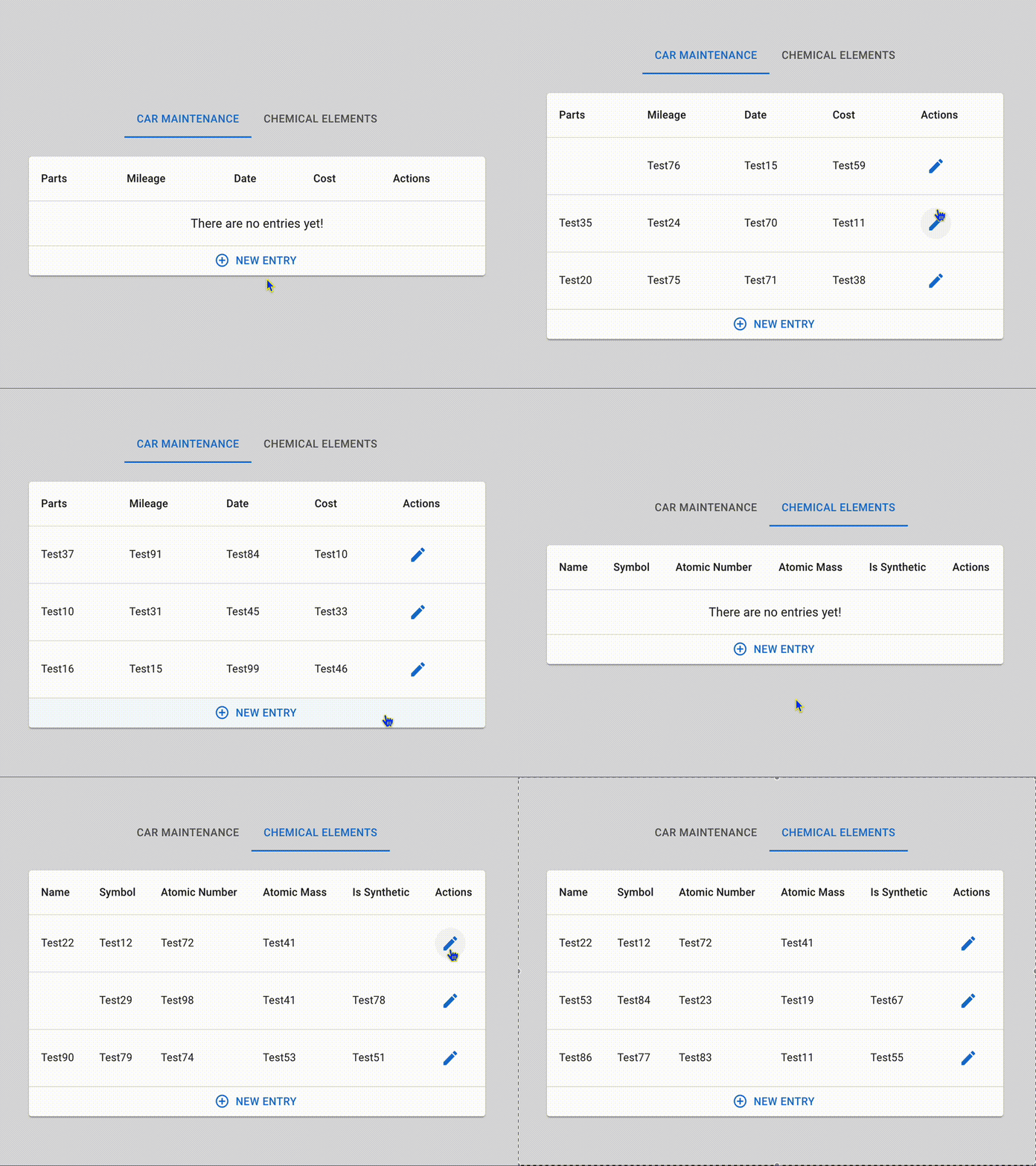
![The image represents what you see after running the starter kit provided.](https://www.sparkfabrik.com/images/engineering/legacy/content/upsertdialog_in_react/starter-kit.gif)

As you can see, random data is generated synchronously, and when you switch tabs, previously entered data is lost. This is due to the use of a custom hook, `useData`, which temporarily persists data in the component: as `MyTable` is destroyed and recreated on tab change, previously generated data is lost.

Also, deleting is not implemented because it is outside the scope of this tutorial. It's very easy to do, though, and you can do it by yourself as an exercise.

With that said, buckle up: we're ready to go!

### The UpsertDialog component

#### The skeleton

We can identify 3 basic features our dialog needs to implement:

1. A configuration for inputs to be displayed;
2. A callback to be invoked when the form is submitted;
3. When opened in editing mode, some initial data must be injected into the form.

We can also provide some optional features, like:

4. a title to the dialog;
5. a callback to be invoked when the dialog is closed.
    > These are just two of many optional features to be possibly provided to the dialog; for the sake of simplicity, we won't cover any other.

Let's convert these stuff into code. Create a new folder in `features/` called `UpsertDialog` and a file `index.tsx` inside it, with the following content:

```jsx
import { useEffect } from "react";
import { Button, Dialog, DialogActions, DialogContent, DialogTitle } from "@mui/material";

function UpsertDialog({
  inputConfig, // [1] The configuration
  title, // [4]
  isOpen,
  onSubmit,
  onClose, // [5]
}) {
  // [2] Data submission logic
  const _onSubmit = (data: any) => {
    _onClose(); // close the dialog and executes logic associated with it
    onSubmit(data); // executes submission logic provided by the parent component, passing it form data
  };

  // [3] Initial data injection (just a placeholder: this is going to be updated later)
  const isEditing = false;
  useEffect(() => {
    if (isEditing) {
      // inject initial values into the form
    }
  }, [isEditing]);

  const _onClose = () => {
    onClose(); // [5] (optional) Custom logic on close
  };

  return (
    <Dialog
      open={isOpen}
      fullWidth
      onClose={(_, reason) => {
        if (reason !== "backdropClick") {
          _onClose();
        }
      }}
    >
      {title && <DialogTitle>{title}</DialogTitle>} {/* [4] (optional) A title for the dialog */}
      <DialogContent>
        {inputConfig.map((item) => (
          <Fragment key={item.name}>{/* Instantiate the input */}</Fragment>
        ))}
      </DialogContent>
      <DialogActions sx={{ mx: 2, mb: 2 }}>
        <Button variant="text" color="error" onClick={_onClose}>
          Cancel
        </Button>
        <Button variant="contained" type="submit">
          Submit
        </Button>
      </DialogActions>
    </Dialog>
  );
}

export default UpsertDialog;
```

> As you can see, the dialog close is disabled when the user clicks in the backdrop. This is an opinionated behaviour: if it doesn't fit your case, feel free to skip that check and register directly the `_onClose` to the `onClose` prop of the dialog.

The dialog component receives a bunch of props; let's extract them into a separate type to be saved into `types.ts`, inside the same folder:

```ts
export type UpsertDialogProps<T> = {
  title?: string;
  inputConfig: UpsertDialogInputConfig<T> | null; // we'll talk about this later
  isOpen: boolean;
  onSubmit: (data: any) => void;
  onClose: () => void;
};
```

Update the component accordingly:

```tsx
...
import { UpsertDialogProps } from "./types";
function UpsertDialog<T>({...}: UpsertDialogProps<T>) {...}
```

**N.B. From now on, you'll see `...` in snippets: it's just a placeholder to refer to previously written code. This way we can concentrate only on the parts we want to add/change.**

#### Setup of react-hook-form

Ok, now it's time to integrate `react-hook-form`! We're going to use its `useForm` hook and extract a bunch of things from it. We won't go into the explanation of how it works that much, so that we can focus exclusively on the dialog implementation; by the way, there are some comments in the code that can help you figure out what's going on.

> If you have any doubt, always refer to the [official documentation](https://react-hook-form.com/).

```tsx
import { useForm } from "react-hook-form";
...
function UpsertDialog<T>({...}: UpsertDialogProps<T>) {
  const {
    register, // registers an input in the form managed by react-hook-form
    control, // *alternative* to register, needed for *controlled* input registration in react-hook-form (see below for details)
    handleSubmit, // extracts data from react-hook-form's state and providing it to a callback passed as its first parameter
    formState: { errors }, // the validation errors
    setValue, // needed to update the form values programmatically
    reset, // clears the form
  } = useForm();
  ...

  const _onSubmit = (data: any) => {
    // Cleanup of empty fields
    for (const key in data) {
      if (!data[key]) {
        delete data[key];
      }
    }
    ...
  };

  const _onClose = () => {
    ...
    reset(); // Clears the react-hook-form's state
  }

  return (
    <Dialog>
      ...
      <form onSubmit={handleSubmit(_onSubmit)}>
        {title && <DialogTitle>{title}</DialogTitle>}
        <DialogContent>
          ...
        </DialogActions>
      </form>
    </Dialog>
  )
}
```

Note that we wrapped `DialogContent` and `DialogActions` inside a HTML `form` tag. In its `onSubmit` we passed the invocation of `react-hook-form`'s `handleSubmit`, whose first parameter is a callback. This one is the custom logic to be applied to the data submission. `handleSubmit` provides the `react-hook-form` state to this callback: this is nothing but a JSON whose fields are the form input registered (shortly, you'll see how) and the values associated with them.

> Note that in the `_onSubmit` we're cleaning empty fields: this might not be the case for you, so feel free to skip this code if it doesn't fit in your specific scenario.

#### Input registration

Now we need to _link_ the graphical HTML input to the data layer provided by `react-hook-form`, an operation called _registration_. Before we do this, we need to remember that these fields will be _dynamic_, i.e. they will need to be defined by the host component. To do this, we can simply provide a **configuration array**, where _each object corresponds to what's needed to configure a particular input_.

Define the type `UpsertDialogInputConfig` which we've left undefined previously:

```ts
import { RegisterOptions } from "react-hook-form";

export type UpsertDialogInputConfig<T> = Array<{
  name: string; // the name required by the `register` function of `react-hook-form`
  options?: RegisterOptions; // the options accepted by the `register` function of `react-hook-form` (or by the `rules` prop of its `Controller` component)

  type?: "text" | "checkbox";
  placeholder: string; // the placeholder for each input field

  initialValue?: T[keyof T]; // the eventual initial value of the field (provided only when editing)
}>;
```

Apart from the `name` and `options` fields (which are derivative of `react-hook-form` implementation), let's go through some opinionated fields of this type definition:

- a `type` is used to define what kind of input is to be instantiated. For the sake of simplicity, we'll only focus on the `text` and `checkbox` types of input in this tutorial.
- the `placeholder`, which can be used as the _placeholder_ and/or as _label_;
- the `initialValue`, that can be `undefined` if:
  - the dialog is opened in creation mode;
  - it's an optional field, so it could be not provided by the remote source in editing mode too.

Let's move on by updating our `UpsertDialog` component with the following:

```tsx
import { ... Box, TextField, Typography, } from "@mui/material";

function UpsertDialog<T>({...}: UpsertDialogProps<T>) {
  ...
  const isFormDisabled = errors && !!Object.keys(errors).length;
  const isEditing = inputConfig != null && inputConfig.some((item) => item.initialValue);

  useEffect(() => {
    if (isEditing) {
      for (const item of inputConfig) {
        if (item.initialValue) {
          setValue(item.name, item.initialValue);
        }
      }
    }
  }, [inputConfig, isEditing, setValue]);

  ...

  return inputConfig && (
    ...
      <DialogContent>
        {inputConfig.map((item) => {
          const placeholder = `${item.placeholder}${
            item.options && item.options.required ? " *" : ""
          }`;

          return (
            <Box key={item.name} mb={1}>
              <TextField
                {...register(item.name, item.options)}
                label={placeholder}
                placeholder={placeholder}
                error={!!errors[item.name]}
                margin="dense"
                fullWidth
              />
              {!!errors[item.name] && (
                <Typography color="error" fontSize={12}>
                  {errors[item.name]?.message?.toString()}
                </Typography>
              )}
            </Box>
          );
        })}
      </DialogContent>
      ...
        <Button variant="contained" type="submit" disabled={isFormDisabled}>
            Submit
        </Button>
      ...
  )
}
```

As you can see, we're not relying on the `required` prop of the `TextField` component because that would enable the `required` check of HTML5 and we don't want that: we rely on `react-hook-form` for that kind of validation. So we just build the placeholder with an asterisk when this option is provided.

In case of any errors, two actions are taken:

- the `TextField` component activates the red border on the field;
- an error message is displayed right below the errored input field.
  > `react-hook-form` allows to customize this message in a naive way; we'll see how [later](https://www.sparkfabrik.com/en/engineering/upsertdialog-in-react/#upsertdialog-instantiation).

We also handle the disabled state of the submit button.

> If you're using MUI, you may experience a glitch when opening the form in edit mode: the value and the placeholder overlap. If this happens, here's how to fix it:
>
> ```tsx
> function UpsertDialog(...) {
>   const { ..., watch } = useForm();
>   const formState = watch();
>   ...
>   return (
>     ...
>     <TextField ... InputLabelProps={{ shrink: !!formState[item.name] }}>...
>   )
> }
> ```
>
> Consider that this triggers a component re-render on each change on the form, so *use it only if strictly necessary*.

#### UpsertDialogInput

Since we're actually managing two possible types of input in this tutorial, it would be convenient to extract a separate component to keep things tidy.

Let's start by its props'  type definition:

```ts
import { Control, Controller, FieldValues, UseFormRegister } from "react-hook-form";

export type DialogInputProps<T extends FieldValues> = {
  type?: "text" | "checkbox";
  configItem: UpsertDialogConfig[number];
  hasErrors: boolean;
  register: UseFormRegister<T>;
  control: Control<T>;
};
```

Note that we're providing both the `register` prop and the `control`: this must be used **exclusively** by the `controller` component provided by `react-hook-form`. To clarify, check the following implementation:

> Place this code in a file called `UpsertDialogInput.tsx` inside `UpsertDialog` folder.

```tsx
import { Checkbox, FormControlLabel, TextField } from "@mui/material";
import { Controller } from "react-hook-form";
import { UpsertDialogInputProps } from "./types";

export default function UpsertDialogInput<T>({
  type = "text",
  configItem,
  hasErrors,
  register,
  control,
  ...props
}: UpsertDialogInputProps<T>) {
  const placeholder = configItem.placeholder + (configItem.options?.required ? " *" : "");
  switch (type) {
    case "text":
      return (
        <TextField
          label={placeholder}
          placeholder={placeholder}
          error={hasErrors}
          margin="dense"
          fullWidth
          {...register(configItem.name, configItem.options)} // <-- `register` function!
          {...props}
        />
      );
    case "checkbox":
      return (
        <Controller
          control={control} // <-- `control` instance!
          name={configItem.name}
          rules={configItem.options}
          render={({ field }) => (
            <FormControlLabel
              control={
                <Checkbox
                  value={field.value ?? false}
                  checked={field.value ?? false}
                  onChange={() => field.onChange(!field.value)}
                  {...props}
                />
              }
              label={placeholder}
            />
          )}
        />
      );
    default:
      throw new Error(`Unknown type: ${type}`);
  }
}
```

`UpsertDialogInputProps` has to be placed inside `types.ts` and be like this:

```ts
import { ..., Control, UseFormRegister } from "react-hook-form";

export type UpsertDialogInputProps<T> = {
    type?: 'text' | 'checkbox';
    configItem: UpsertDialogInputConfig<T>[number];
    hasErrors: boolean;
    register: UseFormRegister<any>;
    control: Control<any>;
};
```

> Passing down the `register` and `control` functions is very naive. We stick with this for simplicity and because we're only dealing with two types of input; a cleaner approach would be using [useFormContext](https://react-hook-form.com/docs/useformcontext) provided by the library.

You can see another component from `react-hook-form` here: `Controller`. It is actually an alternative from the "classic" `register` method that provides _controlled_ capabilities to the form. However, it is implemented in such a way that it still has a performance guarantee. This is very important, because:

- it allows to integrate `react-hook-form` in React Native, where `<form>` HTML is not present;
- it gives us the ability to do very complex things with our input. In the example above you can see that we need to pass the value not only to the `value` prop of the field, but also to the `checked` one. If we had just used `register` this wouldn't be possible, whereas this way we can because we are accessing both the `value` and `onChange` fields directly!
For this reason, this is what we have to use in case of more complex input implementations such as autocomplete, pickers and so on.
  > Be aware that when using `Controller` **it's mandatory** to register both the `value` and the `onChange` callback by hand!

Now let's rewrite the `UpsertDialog` implementation so that we can include just this component:

```tsx
...
import UpsertDialogInput from './UpsertDialogInput.tsx'

export default function UpsertDialog(...) {
  ...
  return (
    ...
    <DialogContent>
      {inputConfig.map((item) => (
          <Box my={1} key={item.name}>
              <UpsertDialogInput
                  type={item.type}
                  configItem={item}
                  hasErrors={!!errors[item.name]}
                  register={register}
                  control={control}
              />
              {!!errors[item.name] && (
                  <Typography color="error" fontSize={12}>
                      {errors[item.name]?.message?.toString()}
                  </Typography>
              )}
          </Box>
      ))}
    </DialogContent>
    ...
  )
}
```

#### The loading spinner

The last step to complete the component is to show a loading spinner if the dialog is not yet ready to be displayed. For this purpose, let's build another very simple dialog, which embeds just the `CircularProgress` component.

```tsx
import { ..., CircularProgress } from "@mui/material";

const TRANSITION_DELAY = 300

export const LoadingDialog = () => (
  <Dialog open={true} transitionDuration={{ exit: TRANSITION_DELAY }}>
    <CircularProgress sx={{ margin: 4 }} />
  </Dialog>
);

export default function UpsertDialog<T>(...) {
  ...
  return (
    ...
    <Dialog
      ...
      open={isOpen}
      transitionDuration={{ appear: TRANSITION_DELAY }}
    > ...
  )
}
```

You might ask: why didn't we just replace the content of the `UpsertDialog` when it's not ready, instead of creating a separate component just for that? The problem is related to data fetching (which we'll cover shortly): when data is injected, the `UpsertDialog` is re-rendered, and this can cause an annoying glitch effect in the transition from "loading state" to "loaded state". Destroying the `LoadingDialog` component and creating the `UpsertDialog` when conditions allow it prevents this nasty effect. However, to achieve this we need to keep the `transitionDuration` -> `end` property of the former and the `transitionDuration` -> `appear` of the latter in sync!

Now that we have finished building our `UpsertDialog`, let's make it smart by leveraging on a custom helper: `useUpsertDialog`.

## useUpsertDialog implementation

The custom `useUpsertDialog` hook will act as the glue that holds the configured `UpsertDialog` and the host together.
So, let's start by considering what we need:

- detect whether the dialogue should be opened in create or edit mode: this could be done by checking the value of the `id` of the resource for which we're editing the data.
- inject an `initialValue` when the dialog is opened in edit mode (but this is valid for creation mode too, in case of some "default value");
- handle the open/close logic accordingly.

Basically we need to manipulate 2 states:

1. for the `config` object, which can be:
    - an array of objects, each defining the configuration for each input;
    - `null` if the dialog is closed.
2. for the `id` which can be:
    - a `string` or a `number` in case of editing mode;
    - a `boolean` set to `true`, if in creation mode.
    > N.B. This is just a personal convention I chosed; use whatever other value you prefer to distinguish the two modes.

From these considerations we can define a type:

```ts
export type UpsertDialogState<T> = {
  config: UpsertDialogInputConfig<T> | null;
  id: boolean | string | number;
};
```
> Remember that we've already defined `UpsertDialogInputConfig<T>` as an array!

As you can see, these 2 states are strictly related each other. To handle them, we could simply use 2 `useState`... but we can do better than that. React provides another great hook to handle this kind of scenario: `useReducer`: instead of managing the two states separately (which can be error-prone), we focus on simply 2 _actions_: the dialog opening and closing.
Write the following code inside the file `upsertDialogReducer.ts`:

```ts
import { UpsertDialogState } from "./types";

export const OPEN_DIALOG = "UPSERTDIALOG_OPEN";
export const CLOSE_DIALOG = "UPSERTDIALOG_CLOSE";

export const initialState: UpsertDialogState<unknown> = {
  config: null,
  id: false,
};

const reducer = <T>(state: UpsertDialogState<T>, action: { type: string; payload?: Partial<UpsertDialogState<T>> }) => {
  switch (action.type) {
    case OPEN_DIALOG:
      const payload = action.payload;
      if (!payload) {
        return { ...initialState };
      }
      return {
        ...state,
        config: payload.config || state.config,
        id: payload.id || state.id,
      };
    default:
    case CLOSE_DIALOG:
      return { ...initialState };
  }
};

export default reducer;
```

Also note that the hook is somehow "bridging" between the host component (i.e. the one that implements the `UpsertDialog`, in our example the tables) and the `UpsertDialog` itself; so what it really needs is to pass is:

- the `inputConfig` to be passed as an `inputConfig` param to the `UpsertDialog`;
- the `onSubmit` callback function to fire when data is submitted;
- a callback to retrieve initial data to inject into the dialog.

Extract another type from this:

```ts
export type UseUpsertDialog<T> = {
  title?: string;
  inputConfig: UpsertDialogInputConfig<T>;
  getInitialData: (itemId: string | number | boolean) => Promise<T | undefined>;
  onSubmit: (itemId: string | number | boolean, data: T) => Promise<void>;
};
```

With this stuff in place, let's write down the `useUpsertDialog.tsx`, whose code is quite self-explanatory:

```tsx
import { useEffect, useReducer, useRef } from "react";
import UpsertDialog, { LoadingDialog } from ".";
import upsertDialogReducer, {
  CLOSE_DIALOG,
  OPEN_DIALOG,
  initialState as upsertDialogInitialState,
} from "./upsertDialogReducer";
import { UseUpsertDialog } from "./types";

export function useUpsertDialog<T extends object>({
  title,
  inputConfig,
  getInitialData,
  onSubmit,
}: UseUpsertDialog<T>) {
  const [dialogState, dispatchAction] = useReducer(upsertDialogReducer, upsertDialogInitialState);
  const dataFetchRequested = useRef(false);

  useEffect(() => {
    async function getInitialValues() {
      const editData = await getInitialData(dialogState.id);
      if (!editData) return;
      const config = [...inputConfig];
      for (const field in editData as T) {
        const configItemIndex = config.findIndex((item) => item.name === field);
        let configItem = config[configItemIndex];
        if (!configItem) continue;
        configItem = { ...config[configItemIndex] };
        configItem.initialValue = editData[field];
        config.splice(configItemIndex, 1, configItem);
      }
      dispatchAction({
        type: OPEN_DIALOG,
        payload: {
          config,
          id: dialogState.id,
        },
      });
    }

    if (typeof dialogState.id !== "boolean" && !dataFetchRequested.current) {
      getInitialValues();
      dataFetchRequested.current = true;
    }
  }, [dialogState.id, getInitialData, inputConfig]);

  const handleCloseDialog = () => {
    dispatchAction({ type: CLOSE_DIALOG });
    dataFetchRequested.current = false;
  };

  const handleOpenDialog = (id?: string | number | boolean) => {
    dispatchAction({
      type: OPEN_DIALOG,
      payload: {
        config: id ? null : [...inputConfig],
        id: id || true,
      },
    });
  };

  const _onSubmit = async (data: T) => {
    await onSubmit(dialogState.id, data);
  };

  const isLoading = !!dialogState.id && !dialogState.config;

  return {
    UpsertDialog: () =>
      isLoading ? (
        <LoadingDialog />
      ) : (
        <UpsertDialog
          title={title}
          inputConfig={dialogState.config}
          isOpen={!!dialogState.id}
          onClose={handleCloseDialog}
          onSubmit={_onSubmit}
        />
      ),
    openDialog: handleOpenDialog,
  };
}

export default useUpsertDialog;
```

Some of you may be wondering: what's the point of a `dataFetchRequested` reference? Well, this is a little React trick that allows you to trigger a `useEffect` with dependencies just once! In fact, normally this behaviour is achieved by providing an _empty_ dependency array to the `useEffect`. In our case, however, this is not possible, because we need several things in the `useEffect`, but this would re-trigger the `getInitialValues` in a loop, because a state change occurs within it! Instead, because references keep their value even after re-rendering, we can set the value right after the first fetch and check if the value is set or not: only if not, the data fetch occurs! Nice, isn't it?

Moreover, from the `useUpsertDialog` perspective there's no clue of the "editing" state. The hook behaves like: "Okay, I see there are some _initial values_, so I'm going to retrieve them." What does it mean? Simple: we can provide the `initialValue` to the input in creation mode as well, not necessarily only while editing the form!

## UpsertDialog instantiation
Now that we're all set, all we need to do is to instantiate a custom `UpsertDialog` using the `useUpsertDialog` in the host component.

In our project we have 2 hosts: `CarMaintenanceHistory` and `ChemicalElementsLearnt`. Before approaching them though, it's necessary to edit a couple of files from the starter kit as some code is no longer needed.

1. in `MyTable/types.ts` edit `MyTableProps` type as follows:

   ```ts
   export type MyTableProps<T> = {
    ...
    onNewItem: () => void;
    onEditItem: (id: number) => void;
   };
   ```

2. in `MyTable/index.ts` remove the `_tempCreateData` definition and invocations.

Now, head to `MyTable/CarMaintenanceHistory.tsx` and let's use our custom hook!

```tsx
export default function CarMaintenanceHistory() {
  const { data, handleInsertion, handleEdit } = useData<MaintenanceEntry>();

  const inputConfig: UpsertDialogInputConfig<MaintenanceEntry> = []; // TODO: see below
  const handleGetInitialData: (id: string | number | boolean) => Promise<MaintenanceEntry | undefined> = () =>
    Promise.resolve(undefined); // TODO: see below
  const handleOnSubmit: (id: string | number | boolean, data: MaintenanceEntry) => Promise<void> = () =>
    Promise.resolve(); // TODO: see below

  const { UpsertDialog, openDialog } = useUpsertDialog<MaintenanceEntry>({
    title: "Car Maintenance",
    inputConfig,
    getInitialData: handleGetInitialData,
    onSubmit: handleOnSubmit,
  });

  return (
    <>
      <MyTable
        config={tableConfig}
        data={data}
        onNewItem={() => openDialog()}
        onEditItem={(id) => openDialog(id)}
      />
      <UpsertDialog />
    </>
  );
}
```

Let's start with the `inputConfig`. From its type definition you can guess it's an array, in which each item corresponds to the configuration of a specific field. Thanks to TypeScript, we can bridge the `options` field with the `RegisterOptions` of `react-hook-form` so that we're able to provide any validation needed for a specific field, just like you would do interacting with `react-hook-form` directly.

```ts
const inputConfig = [
  {
    name: "parts",
    placeholder: "Parts",
    options: {
      required: "Field required",
    },
  },
  {
    name: "mileage",
    placeholder: "Mileage",
    options: {
      required: "Field required",
      validate: (v) => !!Number.parseInt(v) || "Mileage must be a number",
    },
  },
  {
    name: "date",
    placeholder: "Date",
    options: {
      validate: (v) => {
        if (v && new Date(v).toString() === "Invalid Date") {
          return "Invalid date format";
        }
        return true;
      },
    },
  },
  {
    name: "cost",
    placeholder: "Cost",
    options: {
      validate: (v) => {
        if (v && !v.match(/^\d+([\\.]\d+)*$/g)) {
          return "Cost has to be a number";
        }
        return true;
      },
    },
  },
];
```

> The logic provided in `validate` fields is very weak; in a real-world scenario it is better to use a dedicated library or more robust logic instead.

One "quirk" about validation in `react-hook-form` is that if you specify a _string_ as the return value of a validation rule, then if the validation fails, the message will be mapped to the error associated with that field.
> In the [section above](https://www.sparkfabrik.com/en/engineering/upsertdialog-in-react/#input-registration), we've already configured our dialog so that a little red text displays right under the input field when that field has an error.

When it comes to `handleGetInitialData`, this callback is invoked inside the `useUpsertDialog` when some `initialValue` is detected inside its configuration. So, in order to work properly, it **must** return the entity. Most of the times, though, this operation is executed retrieving data from a remote resource: luckily, the callback is `async` so we can perform any asynchronous operation we want. While it fetches the data, [the loading spinner in the dialog](https://www.sparkfabrik.com/en/engineering/upsertdialog-in-react/#the-loading-spinner) will show up:

```ts
const handleGetInitialData = async (id) => {
  return new Promise((resolve) => {
    const item = data.find((item) => item.id === id);
    if (item && item.date) {
      item.date = new Date(item.date).toLocaleDateString("en");
    }
    setTimeout(() => resolve(item), 2000);
  });
};
```

> In the example, we're managing data synchronously via `useData` hook; setting a timeout allows us to simulate a remote call.

It's important to note that once we've retrieved the data, we can do any manipulation we want to make the application digest our data properly (for example, if a field has an array as a value, we could join it into a string).

Finally, the `handleOnSubmit` is called when the submit button is pressed. Here we can call both the data insertion and data update logic: both operations are asynchronous, so this callback is also asynchronous. To distinguish between a creation and an edit, we can rely on the `id` provided as the first parameter of the callback — if it's a boolean, it's a creation, otherwise it's an edit:

```ts
const handleOnSubmit = async (id, data) => {
  const isEditing = typeof id !== "boolean";
  if (data.date) {
    data.date = new Date(data.date).toDateString();
  }
  isEditing ? handleEdit(id as number, data) : handleInsertion(data);
  return Promise.resolve();
};
```

> We used type assertion for `id` because in our project we're using number ids, while the `UpsertDialog` support also strings ids.

Consider that this function is somehow the _opposite_ of `getInitialData`: for this reason, if data needs to be manipulated before being sent to a backend (e.g. split a string with commas into an array) this is the right place to do it.

> Note that in the example we are saving the data in the state as a `DateString` and show it back as a `LocaleDateString` in the dialog!

As a final note, there's no need to directly manipulate data when interacting with the table, so the props `onNewItem` and `onEditItem` simply open the dialog, using the trigger provided by `useUpsertDialog` hook.

In the light of this, the implementation of the dialog in the other consumer component, `ChemicalElementsLearnt`, doesn't need further explanations:

```tsx
const tableConfig: MyTableConfig<ChemicalElementEntry> = [
  {
    heading: "Name",
    keyInData: "name",
  },
  {
    heading: "Symbol",
    keyInData: "symbol",
  },
  {
    heading: "Atomic Number",
    keyInData: "atomicNumber",
  },
  {
    heading: "Atomic Mass",
    keyInData: "atomicMass",
  },
  {
    heading: "Is Synthetic",
    keyInData: "synthetic",
  },
];

const inputConfig: UpsertDialogInputConfig<ChemicalElementEntry> = [
  {
    name: "name",
    placeholder: "Name",
    options: {
      required: "Field required",
    },
  },
  {
    name: "symbol",
    placeholder: "Symbol",
    options: {
      required: "Field required",
      maxLength: {
        value: 2,
        message: "Symbol must be maximum 2 characters long",
      },
      pattern: {
        value: /^[a-zA-Z]+$/,
        message: "Symbol must contain only letters",
      },
    },
  },
  {
    name: "atomicNumber",
    placeholder: "Atomic Number",
    options: {
      required: "Field required",
      max: {
        value: 118,
        message: "Maximum number allowed is 118",
      },
      min: {
        value: 1,
        message: "Minimum number allowed is 1",
      },
      pattern: {
        value: /^\d+$/g,
        message: "Atomic number must be a positive integer number",
      },
    },
  },
  {
    name: "atomicMass",
    placeholder: "Atomic Mass",
    options: {
      validate: (v) => {
        if (v && !v.match(/^\d+([\\.]\d+)*$/g)) {
          return "Atomic number must be a valid number";
        }
        return true;
      },
    },
  },
  {
    type: "checkbox",
    placeholder: "Artificially produced",
    name: "syntetic",
  },
];

export default function ChemicalElementsLearnt() {
  const { data, handleInsertion, handleEdit } = useData<ChemicalElementEntry>();

  const handleGetInitialData: (id: string | number | boolean) => Promise<ChemicalElementEntry | undefined> = async (
    id
  ) => {
    return new Promise((resolve) => {
      const item = data.find((item) => item.id === id);
      setTimeout(() => resolve(item), 2000);
    });
  };

  const handleOnSubmit: (id: string | number | boolean, data: ChemicalElementEntry) => Promise<void> = async (
    id,
    data
  ) => {
    const isEditing = typeof id !== "boolean";
    data.synthetic = !!data.synthetic;
    isEditing ? handleEdit(id as number, data) : handleInsertion(data);
    return Promise.resolve();
  };

  const { UpsertDialog, openDialog } = useUpsertDialog<ChemicalElementEntry>({
    title: "Chemical Element",
    inputConfig,
    getInitialData: handleGetInitialData,
    onSubmit: handleOnSubmit,
  });

  return (
    <>
      <MyTable config={tableConfig} data={data} onNewItem={() => openDialog()} onEditItem={(id) => openDialog(id)} />
      <UpsertDialog />
    </>
  );
}
```

In this example, I've put the `inputConfig` _outside_ the component: this is to show you that you can place each part of the configuration of `useUpsertDialog` hook anywhere you want (even in a separate file to keep things as much tidy as possible)!

## Conclusion

If you are reading this, congratulations! This has been quite a long journey and I want to thank you for coming along.

> You can find [the final code here](https://www.sparkfabrik.com/files/engineering/legacy/content/upsertdialog_in_react/upsertdialog_in_react_final-result.zip).

However, we simply touched the tip of the iceberg: there's much more that can be implemented. Just to give you _some_ examples, we could:

- implement an autocomplete input, with options retrieved from remote;
- implement fancy input like date/color/whatever pickers, as well as inputs having prefix/suffix etc.
- implement custom validation on the entire form, so that you can cross-validate values of the inputs;
- add a configurable hint under an hint, to give more information about what kind of value that input accepts;
- add additional logic on the dialog cancel;
- do any other fancy stuff that possibly pops out of your mind!

There are also some "side-features" that you can use:
- create more instances of the dialog inside the same host to handle possible different scenarios of upsertion;
- the implementation logic used can be applied to other types of dialogs too, not necessarily with forms (for example custom confirmation dialogs).

Ok, that's enough for now. Let me know what you think, about the implementation itself, if you need some aspects being deepened or whatever... just drop a comment on the DEV mirror of this blog, or [contact me](https://www.linkedin.com/in/antonio-barile-17894b237/).

Never lose the spark and keep learning everyday!

---

This is the Markdown version of an Engineering page of SparkFabrik, for AI agents and crawlers. The full page is at https://www.sparkfabrik.com/en/engineering/upsertdialog-in-react/.
